
Disclaimer: This article may contain affiliate links. As an Amazon Associate, we earn from qualifying purchases at no extra cost to you.
🌍 Note for International Readers: The images in this review feature the US (110V) model. However, our “Check Price” links are smartly geo-targeted. When you click, you will be automatically redirected to the correct local Amazon store (UK, CA, AU) showing the 220V/240V version with your correct local wall plugs.
You just plugged your EcoFlow into the wall, expecting the famous 60-minute fast charge, but the screen stays blank. The input reads “0 Watts.”
Don’t panic. If your EcoFlow not charging issue just started, it is very rarely a dead battery.
Because EcoFlow units (like the RIVER 2 and DELTA 2) are highly computerized, they have aggressive safety mechanisms. If the system detects heat, a surge, or a software glitch, it locks the charging port to prevent a fire.
In this 2026 troubleshooting guide, we will walk you through the 5 most common fixes to revive your power station and get it charging again.
1. The 10-Second Troubleshooting Cheat Sheet
Check this table first to identify what your screen is trying to tell you before panicking over an EcoFlow not charging.
| What You See on Screen | The Likely Culprit | The Quick Fix |
| Thermometer Icon Flashing | Temperature Limit (Too Hot/Cold) | Move indoors, wait 60 minutes. |
| “Overload” Warning | Wall Surge / AC Switch Tripped | Reset the Overload Protection Switch. |
| Screen is Blank / Frozen | BMS Software Glitch | Perform a 10-second Hard Reset. |
| 0 Watts on Solar Input | Voltage Exceeded / Bad Cable | Check XT60 port and panel Voc limit. |
| Charging is Very Slow | App Settings | Disable “Custom Charge Speed” in the app. |
2. Fix #1: Reset the Overload Protection
EcoFlow’s “X-Stream” technology pulls a massive amount of power from your wall outlet (up to 1200W for the DELTA 2). Sometimes, a tiny surge in your house’s grid can trip the unit’s internal breaker.
- The Symptom: The unit works on battery, but refuses to take AC power from the wall, resulting in an EcoFlow not charging scenario.
- The Fix: Look at the back of your unit near the AC input port. You will see a small, round button labeled Overload Protection Switch. If it has popped out, simply push it back in until it clicks. Try charging again.
Jackery Owner? If you have a Jackery device with a similar issue, read our dedicated guide: Why Is My Jackery Not Charging? (7 Fixes).
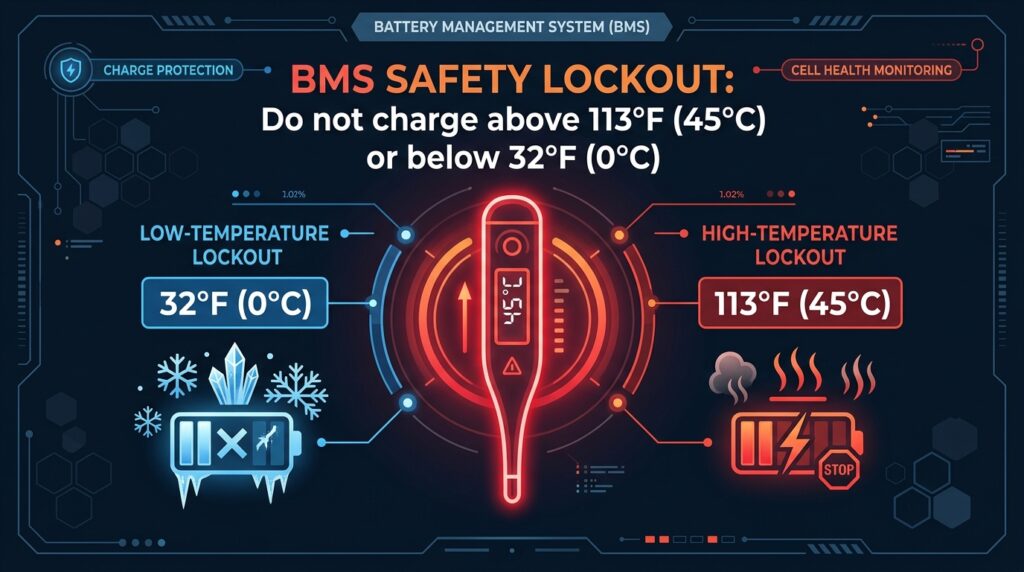
3. Fix #2: The Temperature Lockout (Thermometer Icon)
Fast charging generates heat. If you were just running a heavy appliance and immediately plugged the unit into the wall, the Battery Management System (BMS) will block the charge.
- The Rule: Lithium (LFP) batteries cannot charge if the internal temp is above 113°F (45°C) or below 32°F (0°C).
- The Fix: Unplug the unit. Move it to a shaded, room-temperature area. Let it sit for 45 to 60 minutes so the internal fans can cool the cells. Once the thermometer icon disappears, plug it in.
4. Fix #3: Solar Charging Errors (The XT60 Port)
If your unit charges fine from the wall but your EcoFlow not charging issue only happens with solar panels, the problem is usually the input voltage.
- The Mistake: Plugging a massive 400W panel into a small RIVER 2. If the solar panel’s voltage (Voc) is higher than 30V, the EcoFlow will reject the power to protect itself.
- The Fix: Ensure your solar panel matches the unit’s limits. Also, check the yellow XT60 cable for dust or loose pins.
Sizing Check: Are you using the wrong panel? Read our exact pairing guide: What is the Best Solar Panel for EcoFlow RIVER 2?.
Important Warning: If you are using a third-party solar cable (MC4 to XT60), double-check the Polarity. Some cheap cables are wired incorrectly, meaning Positive and Negative are swapped. This can cause the unit to read ‘0 Watts’ or trigger an error. Ensure your panel’s Positive (+) wire connects to the Positive side of the XT60 input.
If you suspect your cable is damaged, here is a highly-rated, correctly wired XT60i replacement:
5. Fix #4: Check the EcoFlow App Settings
EcoFlow devices are essentially smart computers. Sometimes, you (or an update) accidentally changed a setting.
- The Custom Speed Trap: Open the EcoFlow app. Go to Settings > AC Charging Speed. Ensure the slider isn’t dragged all the way down to “100W” or “Silent Mode.” If it is, the unit is technically working, but it looks like an EcoFlow not charging error to you because it is so slow.
- Firmware Update: While in the app, check for a Firmware Update. A bug in older firmware versions occasionally causes the BMS to freeze.
6. Fix #5: The Hard BMS Reset
If the screen is frozen, or the unit turns on but refuses to recognize any input, the internal computer needs a reboot.
- How to Hard Reset:
- Unplug all cables (AC and Solar).
- Press and hold the main Power Button for 10 to 15 seconds.
- The screen will shut off completely.
- Release the button, wait 5 seconds, and press it once to turn it back on.
- Plug it into the wall. This clears most temporary software glitches that cause an EcoFlow not charging state.
Still Dealing With an EcoFlow Not Charging?
If you have tried all the steps above and your EcoFlow not charging issue persists, you might have a blown internal inverter or a dead cell.
Fortunately, EcoFlow offers a robust 5-year warranty on newer models. Contact their support through the app.
Need a Replacement? If your older unit is officially dead and you need to upgrade to the newest LFP models, check out our deep-dive reviews:
EcoFlow RIVER 2 Review (Best for Camping)
EcoFlow DELTA 2 Review (Best for Home Backup)
👉 Not sure which new model to get?
Read our full head-to-head comparison: [EcoFlow vs Jackery vs Bluetti: Which is Better in 2026?].
FAQ
Q: Why does my EcoFlow stop charging at 99%?
A: This is normal BMS calibration. The battery is balancing the voltage of its individual cells. Leave it plugged in for another 30-60 minutes, and it will eventually hit 100%.
Q: Can I charge it with a gas generator?
A: Yes, but EcoFlow units are sensitive to “dirty” power. If your gas generator does not have a pure sine wave inverter, the EcoFlow will reject the charge.
Q: Why is the fan so loud while charging?
A: EcoFlow’s X-Stream technology charges at incredibly high wattages. The fans must run at full speed to dissipate the heat and protect the battery cells.
Q: What is the most common reason for an EcoFlow not charging?
A: The most common reason is the BMS safety lockout due to extreme temperatures. If you just used the unit heavily, the battery is too hot to accept a charge. Let it cool for 60 minutes.
i had itlast may and now it wont charge i push the button it didnt help is there a place in canada where i good send it to get fix thank you for your time
Hi Robert, I am sorry to hear your EcoFlow unit isn’t charging. Since you are in Canada, EcoFlow’s official support center is your best bet for repairs—you can contact them directly through their official website. However, if the repair costs are high, many users find that upgrading to a newer model with LiFePO4 battery technology is a more cost-effective and long-term solution. You might want to check out this comparison of the latest power stations for 2026: [https://powerstationlab.com/anker-solix-c300-vs-ecoflow-river-2/].
Hello i have Delta 3 version and not charging from AC or Solar input and now have 0% if so how to solve this issue
Hi Jerry,
Sorry to hear your DELTA 3 is giving you trouble! When an EcoFlow unit drops to exactly 0% and refuses both AC and Solar input, the Battery Management System (BMS) has likely entered “Deep Protection Mode” to prevent the internal cells from being damaged.
Here are 3 proven steps to try and wake it up:
1. The 12V Car Charger Trick (Most Effective): Because the battery is at absolute 0%, it is likely rejecting high-voltage AC or fluctuating Solar inputs for safety. Try plugging it into your car’s 12V cigarette lighter port using the car charging cable. This low-voltage, steady trickle charge is often the only way to bypass the lockout and “wake up” a sleeping BMS. Leave it plugged into a running car for about 1 to 2 hours, then switch back to the AC wall charger.
2. Check the Overload Protection Switch: Look closely near the AC input port on the back of your unit. If the small Overload Protection button has popped out (which can happen during power surges), push it back in and try AC charging again.
3. Hard BMS Reset: Unplug all cables and solar panels. Press and hold the main power button for 10 to 15 seconds to force a hard reset until the screen turns completely off. Wait one minute, turn it back on, and plug in the AC cable.
Since the DELTA 3 is a newer model, if these steps don’t wake it up, your internal inverter might have a blown fuse. You are fully covered under EcoFlow’s warranty, so you should contact their official support for a free repair or replacement.
Let me know if the car charger trick works for you!
I have a first generation Eco delta. It is showing the temperature icon. I’ve let it sit unplugged and tried it in different rooms. The icon comes back on within five minutes of charging it. Right now it’s showing 0% charged. It automatically shuts off when I unplug it and try to do the BMS reset. Can you recommend anything else?
Hi Juan,
Thanks for reaching out! I’m sorry you are dealing with this frustrating issue on your original EcoFlow DELTA.
Because the unit shuts off immediately when unplugged, the internal battery cells have completely lost their voltage. Without base voltage, the BMS motherboard cannot stay powered on long enough for you to perform the reset. The temperature icon you are seeing is likely a default error code the system throws when it detects critical cell failure.
Since the 1st Gen DELTA uses older Lithium-ion (NCM) chemistry, the battery typically degrades after 500-800 charge cycles.
There is one “Last Resort” trick you can try:
Instead of plugging it into an AC wall outlet (which pushes high current and triggers the error), try plugging it into your car’s 12V cigarette lighter port or a low-wattage solar panel. Sometimes, a very slow, low-voltage “trickle charge” can bypass the error and slowly wake up deeply discharged cells. Leave it on the car charger for a few hours.
If that doesn’t work, unfortunately, the battery cells are likely dead. Since it is a 1st Gen unit, it is out of warranty, and repairing it usually costs more than buying a new one.
The industry has moved entirely to safe, 10-year LiFePO4 batteries now. If you decide it’s time for an upgrade, we highly recommend checking out our latest showdown of the best 1kWh replacements on the market today:
https://powerstationlab.com/jackery-explorer-1000-v2-vs-anker-solix-c1000/
Hope this helps, and let me know if you have any questions about upgrading!
Best,
Power Station Lab Team
Mi batería es una ALLWEI china y no puedo cargarla porque se dispara un dispositivo de seguridad que detiene la carga. Que puedo hacer para resolver este problema?
Gracias por su atención.
Hola Andrés,
Este problema suele ocurrir cuando el sistema de gestión de la batería (BMS) detecta un voltaje incorrecto, una sobrecarga o un sobrecalentamiento. Aquí tienes los pasos recomendados para solucionarlo:
[ 1 ] Desconecta todas las salidas: Asegúrate de que no haya ningún dispositivo conectado a las tomas de CA, puertos USB o salidas de 12V mientras intentas cargarla.
[ 2 ] Revisa el cargador y la fuente de alimentación: Asegúrate de usar el adaptador de corriente original de ALLWEI. Si el cargador está defectuoso o envía un voltaje superior al límite permitido, el circuito de protección cortará la entrada de corriente inmediatamente.
[ 3 ] Control de temperatura: Si la estación de energía estuvo expuesta al sol o en un ambiente muy caluroso (más de 40 °C), el BMS bloqueará la carga por seguridad. Déjala reposar en un lugar fresco y ventilado durante 1 a 2 horas antes de volver a conectarla.
[ 4 ] Reinicio forzado del BMS: Mantén presionado el botón principal de encendido (o el botón DC) durante 15 a 20 segundos para intentar restablecer los circuitos de protección internos.
[ 5 ] Botón de protección contra sobrecarga: Varios modelos de ALLWEI cuentan con un pequeño botón de restablecimiento (Reset / Overload Protector) en la parte trasera o lateral; si sobresale, presiónalo para rearmarlo.
Si el dispositivo de seguridad se sigue disparando tras verificar el cargador y la temperatura, es muy probable que una de las celdas internas de litio esté dañada o haya caído por debajo del umbral de voltaje seguro.
¡Saludos y espero que puedas solucionarlo!
I have an Echo DELTA 1300 it has experienced a power surge, now it won’t stay on for more than 5 sec being plugged in unless you continue to hold the power button down, it repeats the startup over and over, but as long as its plugged in it will power a device but there in no display read out, it only shows a read out when it powered up then it goes out, and does nothing on its own, is there a quick fix?
Hi Rod,
Sorry to hear about your Delta (1300). What you are experiencing after a power surge is a classic power latch failure / logic board boot-loop.
The main power button on the original Delta is a momentary switch that signals an electronic latch circuit on the mainboard to keep the unit energized. When you hold the button, you are manually forcing power to the control circuit. As soon as you release it, the damaged circuit fails to latch, and the unit immediately cuts power. The pass-through power works because the internal AC bypass relay is physically closed while plugged into the wall.
Here are (3) troubleshooting steps you should try right now to see if it can be recovered without opening the unit:
(1) Check the AC Overload Breaker Button: Look at the back/side of the unit near the AC input socket. There is a small, round push-button breaker. If the surge caused an over-current event, this button may have popped out slightly. Unplug the AC cord, firmly press that breaker button back in until it clicks, and try powering on.
(2) Deep Capacitor Discharge (Hard Reset): Unplug EVERYTHING from the Delta (no wall plug, no USB, no devices connected). Press and hold the main power button continuously for (30) to (45) seconds to force all internal capacitors to drain residual surge energy. Then, leave the unit completely untouched for at least (1) to (2) hours in a cool room. After that, try powering it on with nothing connected.
(3) Attempt a DC/Solar “Jumpstart”: Surges can confuse the low-voltage communication rail. If you have the car cigarette lighter charging cable or a small solar panel, plug it into the yellow XT60 port on the back (keep the AC wall plug disconnected). Sometimes feeding low-voltage (12)V DC directly into the MPPT controller bypasses the tripped AC logic and wakes up the microprocessor.
The Honest Reality:
If these steps do not break the boot loop, the power surge unfortunately damaged the internal logic board or power supply rail.
Because the original Delta (1300) is a legacy model with older NCM battery chemistry (rated for (800) cycles), out-of-warranty motherboard replacement through EcoFlow typically costs several hundred dollars plus shipping on a (30)-lb hazardous battery.
If the repair estimate is too high, most owners find it much more cost-effective to upgrade to modern LiFePO4 models (like the DELTA (2) or the new DELTA (3) series). Modern units feature (3,000)+ cycle life ((10)+ years), sub-(20)ms built-in surge/EPS protection, and charge in under (50) minutes:
👉 You can check our detailed breakdown and tests here: https://powerstationlab.com/ecoflow-delta-2-review/
Give those (3) reset steps a try first and let us know what happens!